Activity
How to read a WordPress activity log
This guide shows how to understand an action on the site, when it was recorded, and the account associated with it. A page update, a plugin update, and a failed login show what those details mean.
If Sentinel is already recording, open Sentinel → Activity Logs.
Checked on WordPress 7.1.4, and the Sentinel section on Sentinel 1.2.5, on 10 November 2026.
Jordan Hale updated Pricing
These are controlled records from a local test. Jordan Hale published a page called Pricing, then updated it. Avery Cole is the account the page is assigned to.
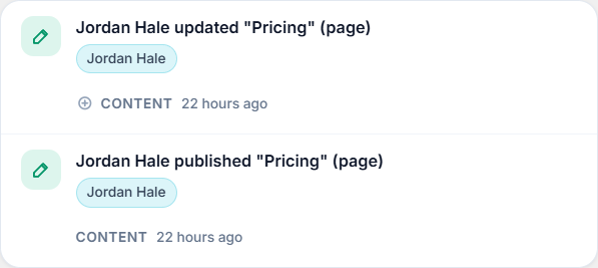
Updated means a save was recorded. It does not say whether any wording changed. The time at the end of the line is how long ago that was. Open the record for the full timestamp.
Search matches an account, an IP address, or the event label. It does not match the page title, so searching for Pricing finds nothing. Choose Content and read the title on the line.
Open the record
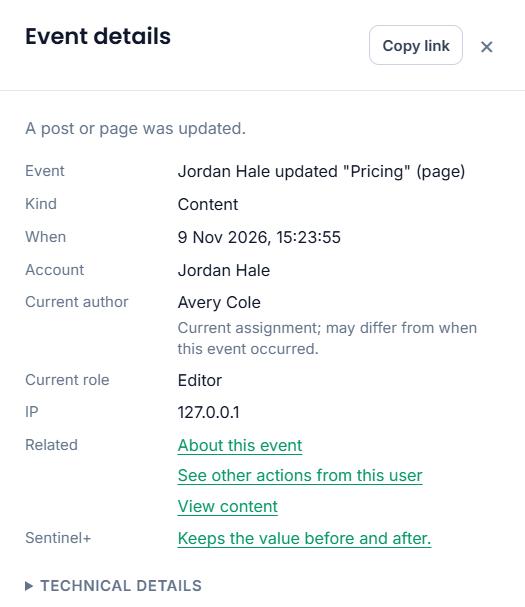
Recorded with the event
- Event. Jordan Hale updated "Pricing". The page title is the one stored with the save.
- When. 9 Nov 2026, 15:23:55, in the site's timezone.
- Account. Jordan Hale. Sentinel stores the account ID for the action and shows that account's display name as it is today. If several people share the login, the name does not say which person was there.
- IP. The address the site saw for the request. Here it is
127.0.0.1, the local address. An address is a clue about the connection, not a person.
Looked up today
- Current author. Avery Cole is the account the page is assigned to now. The note says that assignment may differ from when the event occurred. Changing the page's author later does not change Account.
- Current role. Editor is Jordan Hale's role now. It is not a role stored with the save.
From Sentinel Free 1.2.5 onwards, new page-save events record the authenticated account performing the action, when one is available, rather than the page's assigned author. Events recorded by earlier versions may still name the assigned author; upgrading does not rewrite those records. When no authenticated account is available, the record says No signed-in user. Who changed a page explains those older records.
The drawer can also offer Sentinel+. When Sentinel Free and Sentinel+ are both recording at the time, Plus keeps the title before and after a published page update, and a limited before-and-after passage of the content. It is not a full copy of the page. Adding Plus later does not fill in a save that was already recorded. Changes has the limits.
Two records that are read differently
A plugin update
Sam Okonkwo updated Classic Widgets.
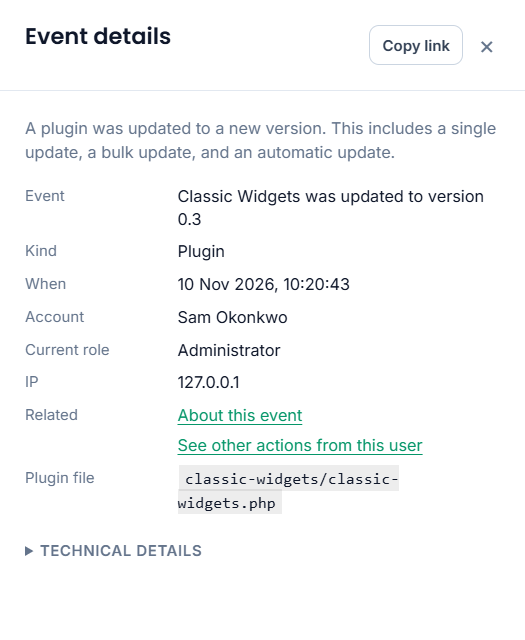
Account is Sam Okonkwo. The event records Classic Widgets being updated to version 0.3. A plugin event has no Current author. Plugins shows the version installed today, which may have changed since that event. Who activated or updated a plugin follows that record further.
A failed sign-in
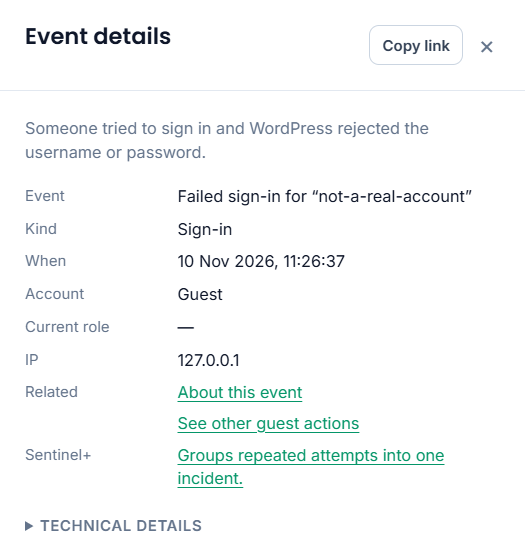
Account is Guest. The attempt did not sign anyone in, and Guest is not an identified person. No account / Guest selects records without an associated account, within the other filters already on the screen. It does not identify one visitor or connect those records to the same person. Who tried to log in shows how to follow this record.
What to check next
- Open the Pricing update and note the action, Jordan Hale, and the time.
- Stay on Content. Open More filters, set User to Jordan Hale, set From and To to that day, and choose Filter. The list is content events that match that account and that day. Matching an account and a date does not show that one event caused another.
- Choose All to include the rest of Jordan Hale's activity for those dates. The account and the dates stay. Content no longer limits the list.
- Reopen the Pricing update, then select View content. Use Revisions to compare the wording. After All, the list can include other kinds of events.
- To keep a copy, open Sentinel → Settings → Export & API. See Export & API for export instructions.
See other actions from this user opens that account's activity and keeps the view and dates already on the screen.
Can't find the record?
A missing record does not prove the action never happened.
- Recording was not on. Sentinel keeps events only from the time it is switched on.
- The event is switched off. Check Sentinel → Event Registry.
- Filters are hiding it. The range starts at the last 7 days. Clear removes the view, the account, and the dates, and the range returns to the last 7 days.
- It may have been archived or deleted. Activity Logs shows the live list. For an older copy, open Sentinel → Settings → Export & API and set Source to Archive. Settings covers how long records are kept.
A field is missing?
A missing field does not necessarily make the record unusable. Check what information is still available.
- Account. When the stored account can no longer be found, the field says Deleted account with its id.
- Current author. This is today's assignment. If the lookup cannot be completed, the field says the content is unavailable or that no author is assigned. That is not, by itself, a deletion. A permanent deletion says Unavailable. This content was permanently deleted.
- IP. Privacy & access can leave logging off, or mask an older address. See Privacy & access.
For the rest of the screen, see Activity Logs.