Sign-ins
Who tried to log in to WordPress?
WordPress does not provide a built-in login-history screen by default.
A failed sign-in means the attempt did not succeed. A successful sign-in means WordPress accepted the login. Neither one, by itself, identifies the person behind it.
If Sentinel was already recording, open Sentinel → Activity Logs and choose Sign-ins.
Checked on WordPress 7.1.4, and the Sentinel section on Sentinel 1.2.5, on 10 November 2026.
Where to look
- Open Sentinel → Activity Logs and choose Sign-ins.
- Choose the date range. It starts at Last 7 days. For something older, choose Last 30 days or All retained, then Filter.
- Click the failed sign-in count to show unsuccessful attempts. To see successful logins, open More filters and set Event type to Signed in. Choose Signed out for logout activity.
- Open an entry to read the details.
Leave User on All users until you can see which account was involved. Search matches an account, an IP address, or the event label. It does not match the name in a failed attempt.
A new account, or a change of role, can also appear here. Those are separate events.
Two rejected attempts, then a sign-in
These come from a controlled test on a local site. Nia Okeke is an Author, and her login is nia-okeke. A name that is not an account was rejected, her login was rejected, then she signed in and signed out.
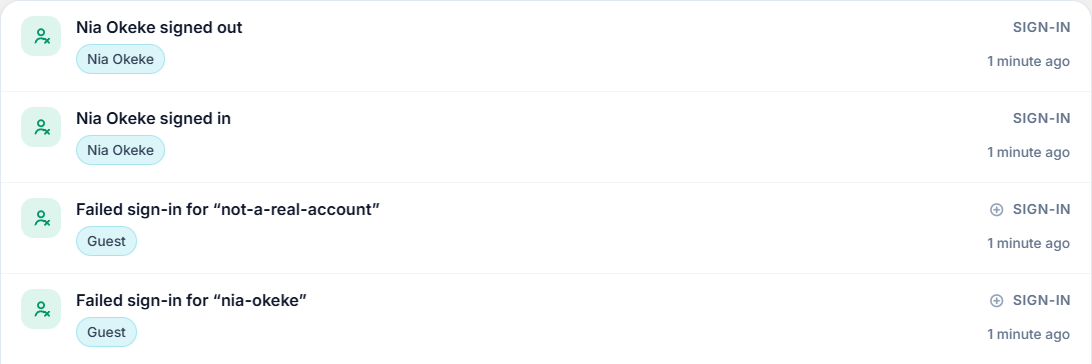
Failed sign-in
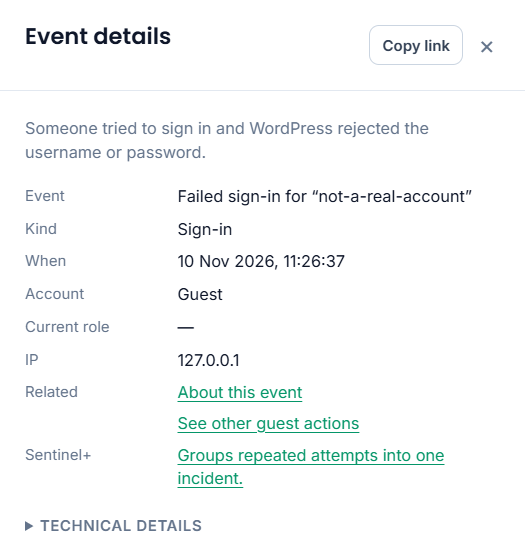
The event description shows the username or email address submitted during the attempt. Privacy anonymisation can shorten that value later. Account is Guest in this example, because the attempt did not sign anyone in. The name does not show who tried.
When is the time Sentinel recorded it, in the site's timezone. IP is the address the site saw. Here it is 127.0.0.1, the local address. An address is a clue about the connection, not the person. A shared network, a VPN, or a proxy can put many people on one.
Successful sign-in
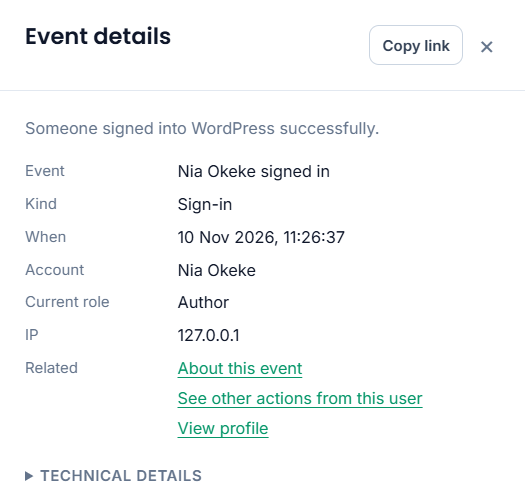
Account is Nia Okeke, the account WordPress accepted. If several people share that login, this still does not say which person was there.
Similar times, and the same address, do not prove that one person made every attempt.
What to do
You recognise the failed attempt
Nothing further is needed. A mistyped password is a common example.
You see repeated unfamiliar failures
Failures on their own do not mean a password was exposed. Use a strong, unique password, and two-step authentication where you can add it. Hardening WordPress is WordPress's guidance. Change a password that is weak, reused, or you have reason to think was exposed. Changing a strong password again does not stop automated guesses.
Watch for a successful sign-in, and review how the site handles logins. An office, a VPN, or a monitor can share an address, so do not block every unfamiliar one.
You do not recognise a successful sign-in
- Ask whether the account owner recognises it. WordPress accepted the login. That does not prove the account was stolen.
- If it stays unexplained, change the password and end the other sessions.
- Review what happened afterwards. Who changed a page and who activated or updated a plugin are two places to look.
To end the sessions in step 2:
- Your account: open Profile, find Sessions, and choose Log Out Everywhere Else. That ends your other sessions and leaves this one.
- Someone else's account: an administrator who can edit that user opens them and chooses Log Out Everywhere. That ends all of that account's sessions. If you cannot edit users, ask an administrator.
Log Out Everywhere Else is disabled when this is already your only session.
When failed attempts become a pattern
A long run of failures is easier to review as one incident than as separate attempts.
Sentinel Free records each attempt. It does not block sign-ins, and it does not add two-factor authentication.
While Sentinel+ is recording, that run can be grouped into one incident. When Sentinel+ creates an incident, it sends an email notification to the Send notices to address under Settings → Notifications, or to the site admin address if that field is empty. No separate alert has to be turned on. Delivery still depends on the site being able to send mail. A short run does not open an incident. The threshold is in Incidents. Closing the incident does not block the address.
When there is no record
A missing record does not prove the attempt never happened.
- Recording wasn't enabled. Sentinel keeps attempts only from the time it is switched on.
- The event is switched off. Check Sentinel → Event Registry.
- Filters are hiding it. Choose Clear, then Sign-ins, and widen the range past the last 7 days.
- The record was archived or deleted. Activity Logs shows the live list. For an older copy, open Sentinel → Settings → Export & API and set Source to Archive. Settings and Export & API cover how long records are kept.
- A role is excluded. Data & retention can skip a role, which leaves out a successful sign-in by that role. A failed attempt on the login form is not stored against an account, so that skip does not remove it.
- The login method uses a different authentication route. Sentinel records a failure when WordPress reports one, and a sign-in when WordPress accepts one, including a custom form that uses WordPress's own sign-in. A method that bypasses that, or a request stopped before WordPress checks the login, leaves no record.
A record can be present and still have no address. Privacy & access can leave IP logging off, and it can mask older addresses. See Privacy & access.